
Häufig gestellte Fragen
What do I do if the app cannot be updated on the iPhone or iPad?
In fact, the App Store on iPhone, iPad, or Mac can sometimes get ‘stuck’ and fail to update apps. In this case, deleting the app, restarting the device, and then reinstalling the app usually helps. You may also need to select ‘Restore Purchases’ in the app afterward.
Apple provides further information here: https://support.apple.com/de-de/HT201398
My "TV Pro Gold for iPhone/iPad" status is not recognized. What can I do?
Note:
Please check in the first step in which TV Pro app you purchased the Gold status. You can find the app name on the purchase receipt.
This is either:
Alternatively, you can find out in which app you purchased it by checking in the App Store settings under:
A package should be selected and active here.
Please open the app in which you purchased the Gold status in the next step.
Now your Gold status has been saved in your TV Pro ID
To transfer your Gold status to your second device or to another version of TV Pro, please follow these steps:
- "TV Pro Gold für iOS" is only valid for iPhone/iPad
- "TV Pro Gold für Mac" is only valid for Macs (Macs mit Apple Chips, ab 2020)
- "TV Pro Gold für Mac & iOS" is valid for Macs (Macs mit Apple Chips, ab 2020) and for iPhone/iPad
- For Apple TV, you can purchase separate packages.
1. Check in which app the purchase was made
Please check in the first step in which TV Pro app you purchased the Gold status. You can find the app name on the purchase receipt.
This is either:
 TV Pro Classic
 TV Programm TV Pro
Alternatively, you can find out in which app you purchased it by checking in the App Store settings under:
App Store > tap your profile picture in the top right > Subscriptions > TV Pro
A package should be selected and active here.
2. Open the app and transfer the Gold status to the TV Pro ID
Please open the app in which you purchased the Gold status in the next step.
- If you purchased Gold in TV Pro Classic, follow these steps:
- 1. Open TV Pro Classic
- 2. Tap the gear in the bottom right
- 3. Select TV Pro Gold
- 4. Log in with your TV Pro ID or create a new TV Pro ID (free) if you don't have one yet
- 5. Tap "Restore Purchases"
- If you purchased Gold in TV Programm TV Pro, follow these steps:
- 1. Open TV Programm TV Pro
- 2. Open Settings
- 3. Tap the first entry: this is usually your name and/or email address or "Not logged in"
- 4. Log in with your TV Pro ID or create a new one if you don't have one
- 5. Tap "Restore Purchases"
Now your Gold status has been saved in your TV Pro ID
3. Restore Gold status on another device or in another app
To transfer your Gold status to your second device or to another version of TV Pro, please follow these steps:
- Open the corresponding app on the target device
- Go to the TV Pro Gold settings as described above and log in with your TV Pro ID
- Tap "Restore Purchases"
- Your TV Pro status should now also appear here
For which platforms is "TV Pro" (Digital TV Magazine) available and how do I purchase corresponding subscriptions?
Download TV Pro for these platforms:
iOS (iPhone/iPad)
https://itunes.apple.com/de/app/tv-programm-tv-pro/id773206309?mt=8
Mac (Macs mit Apple-Chips, ab 2020)
https://itunes.apple.com/de/app/tv-programm-tv-pro/id773206309?mt=8
tvOS (Apple TV)
https://itunes.apple.com/de/app/tv-programm-tv-pro/id773206309?mt=8
Get the Gold package that’s right for you and save with Gold MAX for Mac & iOS.
iOS (iPhone/iPad)
https://itunes.apple.com/de/app/tv-programm-tv-pro/id773206309?mt=8
Mac (Macs mit Apple-Chips, ab 2020)
https://itunes.apple.com/de/app/tv-programm-tv-pro/id773206309?mt=8
tvOS (Apple TV)
https://itunes.apple.com/de/app/tv-programm-tv-pro/id773206309?mt=8
Get the Gold package that’s right for you and save with Gold MAX for Mac & iOS.
What is TV Pro Gold MAX?
TV Pro Gold MAX is the extended Gold package for TV Pro. It includes the new large package “Home Cinema” with Live TV and Streaming Integration and many more features. Users of TV Pro Gold (new name: TV Pro Gold START) can switch to Gold MAX at any time.
TV Pro Gold MAX is available for Mac or iOS. There are also combination packages for use on both platforms.
I already have a TV Pro Gold license for iOS. Can I also use it on the Mac?
"TV Pro Gold for iOS" is intended for use on iPhone and iPad. There is a separate app for macOS with its own license: "TV Pro Gold for Mac".
To also use TV Pro on the Mac, you can either purchase an additional Mac license or upgrade your existing iOS Gold subscription to a combo package (iOS + Mac).
Is the classic view in Day One also available for Mac? Is it planned?
TV Pro for Mac is designed for larger screens: the day view in the modern layout is best suited for this. The classic view is not currently planned.
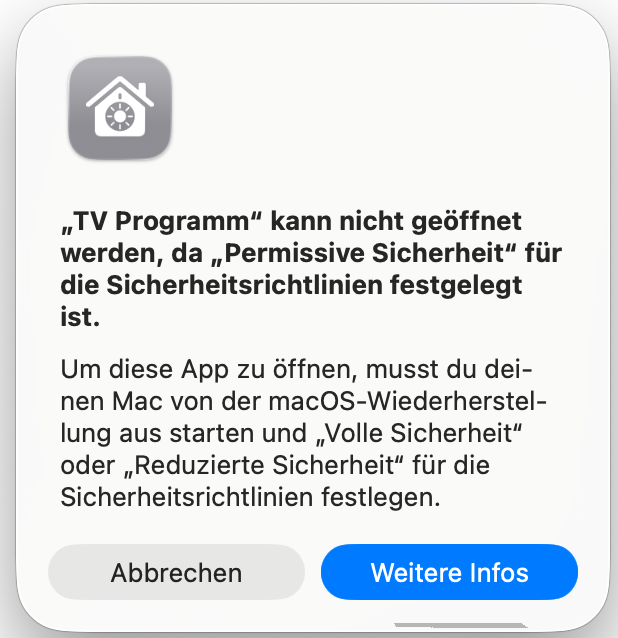
When starting TV Pro on Mac, the message appears: "TV Program cannot be opened because „Permissive Security
To launch a Mac AppStore app that is also iPad compatible, System Protection must be enabled in macOS.
Please follow these steps:
https://developer.apple.com/documentation/security/disabling-and-enabling-system-integrity-protection
Where is the search stream?
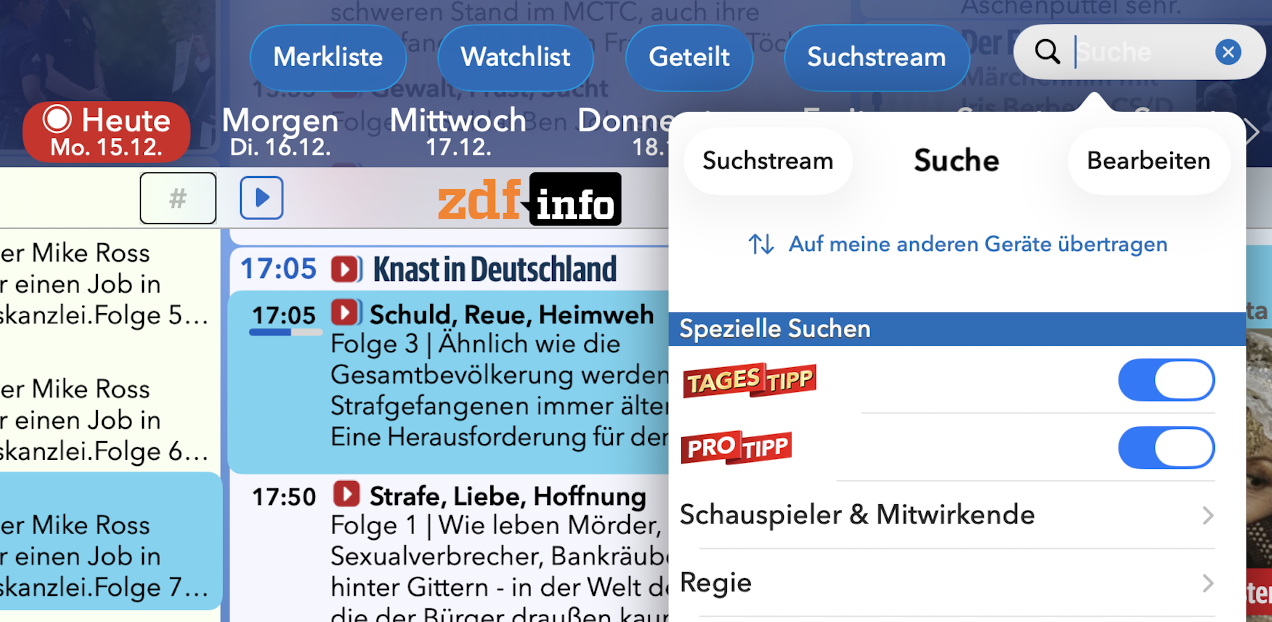
The search stream shows you all programs in the current schedule for all search terms you have set. (Search for a program or actor and press "Follow" in the result list at the bottom)
On Mac you find your search stream at the top right (next to the search field).
On iPad: show the sidebar at the bottom left and go to Tips, select "Search Stream" there
On iPhone you swipe from the left edge of the screen to the right to get to the menu. Under "My TV Pro" you will find the search stream.
On Mac you find your search stream at the top right (next to the search field).
On iPad: show the sidebar at the bottom left and go to Tips, select "Search Stream" there
On iPhone you swipe from the left edge of the screen to the right to get to the menu. Under "My TV Pro" you will find the search stream.
What’s on TV right now?
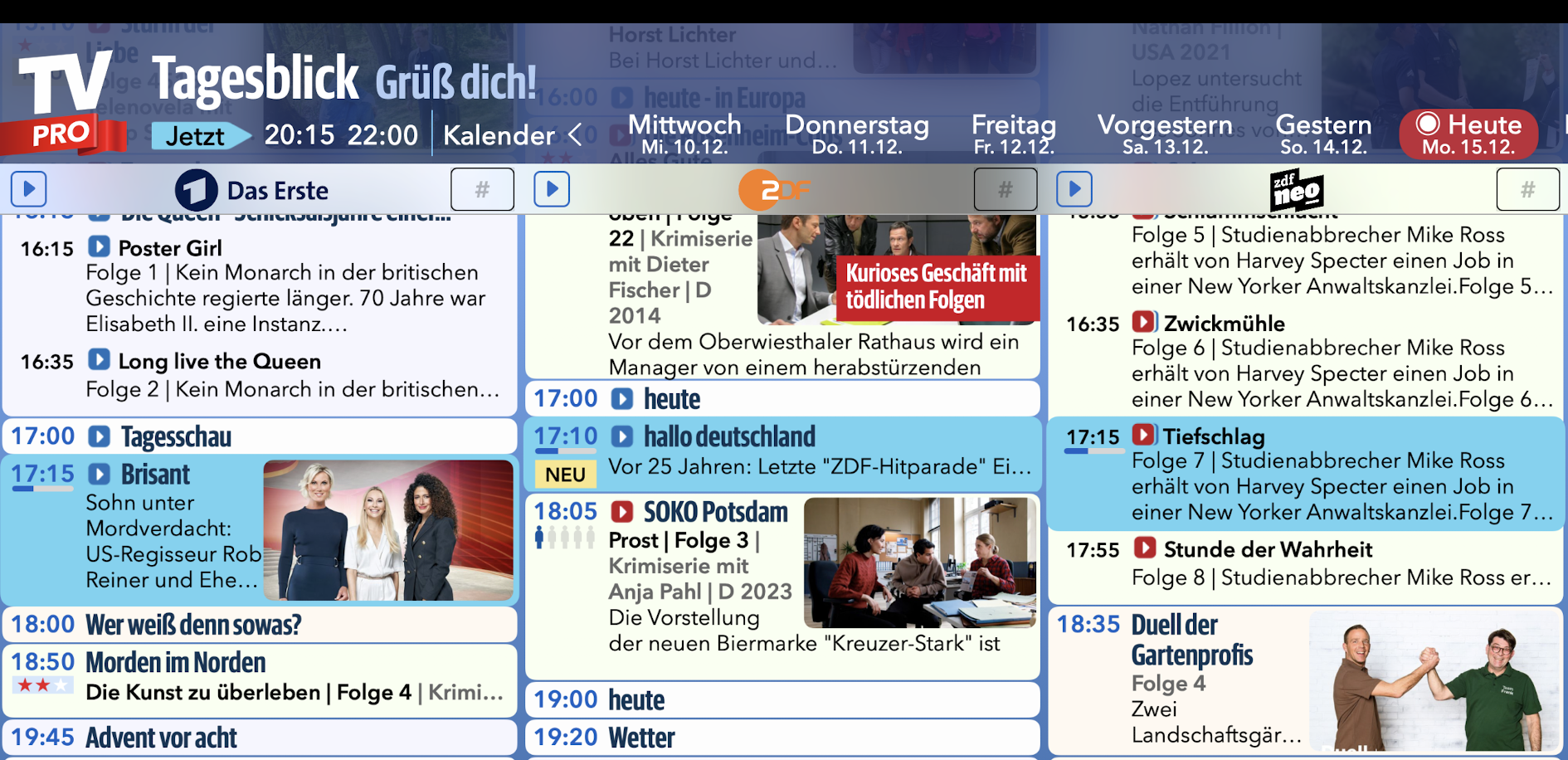
In the Daily View, all running programs are highlighted in color. You can recognize channels with a Live TV stream by the large blue play arrow next to the channel logo: tap and watch TV immediately.
What programs does the TV Pro editorial team recommend today?
You can turn on ProTips and Daily Tips in the search. They now appear daily clearly in your search stream.
In addition, ProTips and Daily Tips are marked in the Daily View and Channel View.
What are other users watching today?
You recognize User Tips in the Daily View by the number of male symbols under the time. Programs with many pre-bookings have five male symbols.

In the Daily View, all running programs are highlighted in color. You can recognize channels with a Live TV stream by the large blue play arrow next to the channel logo: tap and watch TV immediately.
What programs does the TV Pro editorial team recommend today?
You can turn on ProTips and Daily Tips in the search. They now appear daily clearly in your search stream.
In addition, ProTips and Daily Tips are marked in the Daily View and Channel View.
What are other users watching today?
You recognize User Tips in the Daily View by the number of male symbols under the time. Programs with many pre-bookings have five male symbols.
Where can I find the program sorted by channels?
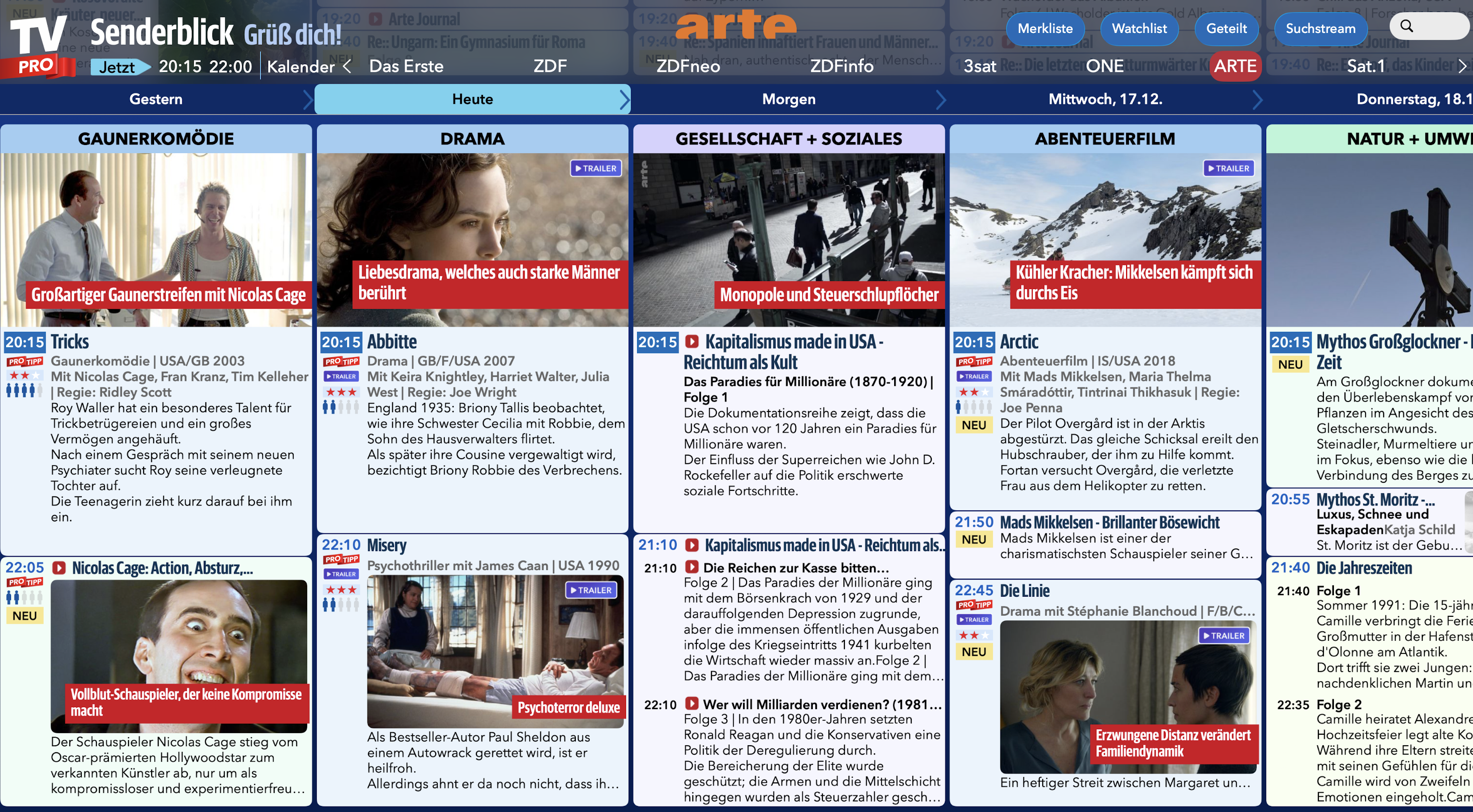
In Senderblick you select a sender and then see its program: day after day. This gives you a quick overview of what your favorite sender shows on the next day.
Is the magazine view also available for Mac? Is it planned?
The magazine layout is part of the iPhone and iPad version of TV Pro. On the Mac, we are currently using different views that optimally utilize the larger screen and the Mac-typical operation.
Is the remaining time on an iOS plan purchased in the Classic app credited when switching to the Mac & iOS plan?
If you purchased your TV Pro Gold Plan for iOS through the TV Pro Classic App in the App Store, this plan runs technically and billing-wise independently of other plans. A credit or proportional consideration of the remaining term is therefore unfortunately not possible, as these purchases are processed directly via the App Store and are outside our billing.
Exactly for this reason, the price for the combined Mac & iOS Plan is deliberately set lower. It takes into account that there may be a temporary overlap with an existing iOS Classic purchase. You are not paying twice in the classical sense, but benefit from a reduced price for switching to the extended plan.
If you switch to the Mac & iOS Plan, please remember to disable the automatic renewal of your existing Classic Plan in the App Store in good time. This ensures that the Classic Plan does not renew again.
If you have any questions about the switch or the differences between the individual plans, our support team is always happy to help.
In the daily view, there are too many details for each program; I would prefer a clearer overview.
You can easily show and hide the details at any time by tapping the "Details" button in the lower right corner. This works on iPhone, iPad, and Mac.
You can find this and many other tips on our Tips & Tricks page.
You can find this and many other tips on our Tips & Tricks page.
The background is that we dynamically create 100% of the senders every morning at 5 a.m. based on the popularity of the previous days. This ensures that fresh, new media library content is included. Therefore, there are no 100% senders for days in the future.
The main window with the daily overview and all my programs has disappeared, how do I get it back?
If you can't find the main window of TV Pro or it has been accidentally closed, you can easily open it again using the keyboard shortcut Command-0. Alternatively, open the Window menu at the top of the TV Pro menu bar and select "TV Pro Main Window".